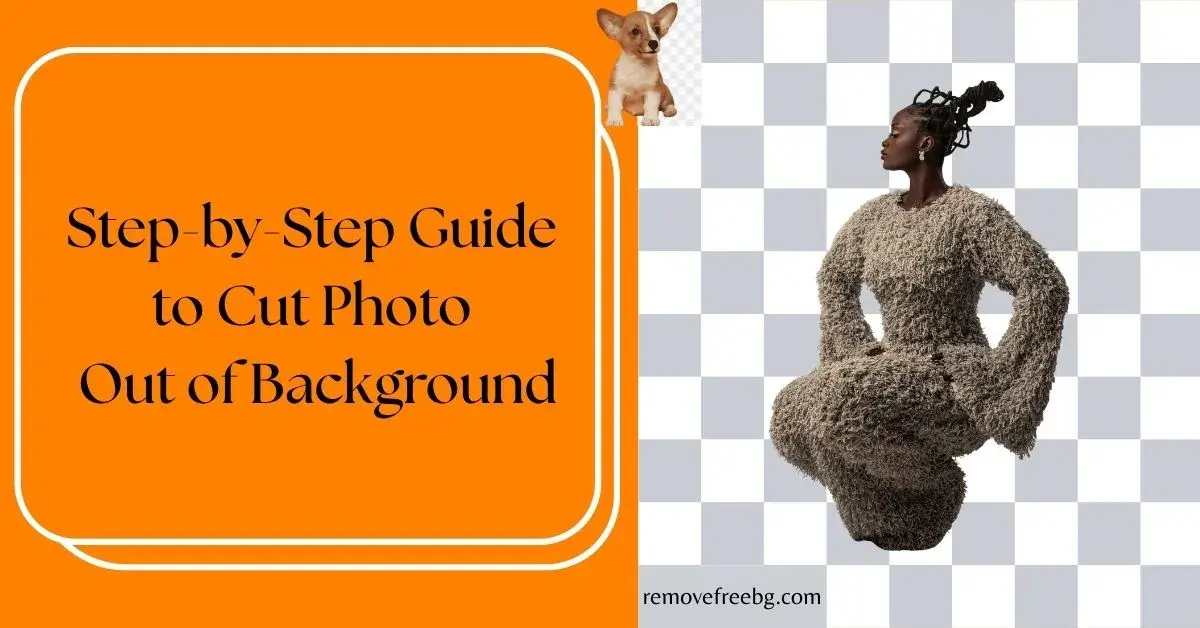
Step-by-Step Guide to Cut Photo Out of Background
Effortlessly Remove Backgrounds with Our Simple Techniques for Stunning Visuals
RemoveBG
April 16, 2026
Table of Contents
Cutting a photo out of the background is one of the most common image-editing tasks, whether you are preparing product photos, social media graphics, or documents.
This step-by-step guide explains how to cut a photo out of the background using free tools, built-in software, and simple techniques that work for beginners and advanced users alike.
What Does It Mean to Cut a Photo Out of the Background?
To cut a photo out of the background means separating the main subject of an image from everything behind it. The background is removed or replaced, leaving the subject cleanly isolated.
The result is often saved as a transparent image or placed on a new background. This technique improves clarity, focus, and flexibility in design.
When Should You Cut a Photo Out of the Background?
Background cutting is useful when the background distracts from the subject or does not fit the intended use. It is commonly used for profile photos, product listings, marketing images, official documents, and social media posts.
The goal is not decoration, but clarity.
Step 1: Choose the Right Image
A clean source image makes the process easier. Good lighting, sharp focus, and contrast between the subject and background improve results.
Avoid images with heavy shadows or overlapping colors when possible. Even the best tools struggle with poor inputs.
Step 2: Cut Photo Out of Background Using Free Online Tools
Free online tools are the fastest way to cut a photo out of the background. These tools like RemoveFreeBG, use automated detection to identify the subject and remove the background instantly.
Upload the image, let the system process it, and review the edges. Some tools allow light refinement before exporting.
This method works well for portraits, products, and simple objects.
Step 3: Cut Photo Out of Background Using Built-In Software
Many devices include basic editing tools that allow background removal.
On Windows, Paint provides object selection and background deletion. On macOS, Preview and Photos allow manual selection and background removal.
Mobile photo editors also offer automatic subject isolation. These tools are free and reliable for straightforward images.
Step 4: Manually Cut a Photo Out of the Background (Advanced Control)
For complex images, manual editing provides the most accuracy.
Free desktop software like GIMP allows you to trace the subject using selection tools and masks. While this requires more time, it offers precise edge control for hair, transparent objects, and irregular shapes.
Manual cutting is best when quality matters more than speed.
Step 5: Export the Image Correctly
After you cut the photo out of the background, choose the right format.
PNG is ideal if you need transparency. JPG should be used only if the background is replaced with a solid color. WEBP is suitable for web use with smaller file sizes.
Incorrect export settings can undo all your work.
Common Mistakes When Cutting a Photo Out of the Background
Rough edges, missing details, and over-smoothing reduce image quality. Another frequent mistake is exporting at low resolution or flattening transparency unintentionally.
Always zoom in and review the edges before finalizing.
Best Practices for Clean Results
Keep edits minimal and realistic. Match the lighting and shadows if you add a new background. Avoid excessive sharpening or artificial smoothing.
The best cut-outs look natural and unobtrusive.
Final Thoughts
Learning how to cut a photo out of the background is a practical skill that improves visual clarity across many use cases. Whether you use automated tools or manual editing, the key is precision and restraint.
A clean cut doesn’t attract attention; it removes distractions.
Visit RemoveFreeBG To Cut Photo Out of Background
Download the Application | Android | IOS |
FAQs
1. What is the easiest way to cut a photo out of the background?
The easiest way to cut a photo out of the background is by using free online background removal tools. These tools automatically detect the subject and remove the background within seconds, requiring no design experience.
2. Can I cut a photo out of the background for free?
Yes, you can cut a photo out of the background for free using online tools, built-in software on Windows or macOS, or open-source programs like GIMP. Most free options are sufficient for web and social media use.
3. Which image format is best after cutting the background?
PNG is the best format after cutting a photo out of the background because it supports transparency. JPG should only be used if the background is replaced with a solid color.
4. Why does my cut-out photo look rough around the edges?
Rough edges usually occur due to low image resolution, poor lighting, or busy backgrounds. Using a high-quality source image and refining edges before exporting improves results significantly.
5. Is cutting a photo out of the background the same as background removal?
Yes, both terms describe the same process, separating the main subject from the background. “Cut photo out of background” is often used in step-by-step tutorials, while “background removal” is a broader technical term.
6. Can I cut a photo out of the background on my phone?
Yes, many mobile photo editing apps offer automatic background cutting using AI. These are useful for quick edits and social media images.
7. Do I need professional software to cut a photo out of the background?
No. Professional software is optional. Free tools and built-in editors can handle most background cutting tasks effectively, especially for simple images.
# Related Posts

How to Remove Background From Jewelry Photos Without Losing Fine Details
A practical guide to creating clean jewelry cutouts while preserving delicate chains, stones, metal edges, and small details.
RemoveBG
Oct. 15, 2026
How to Create a Transparent Product Image for Online Stores
A practical guide to turning ordinary product photos into clean, reusable transparent images for ecommerce
RemoveBG
Oct. 15, 2026
Common AI Background Removal Mistakes and How to Fix Them
A practical troubleshooting guide for cleaner, more accurate AI-generated cutouts
RemoveBG
Oct. 1, 2026